General settings
Enable Item Assist for your project and choose other high-level settings. To get started, click General on the Item Assist home page.
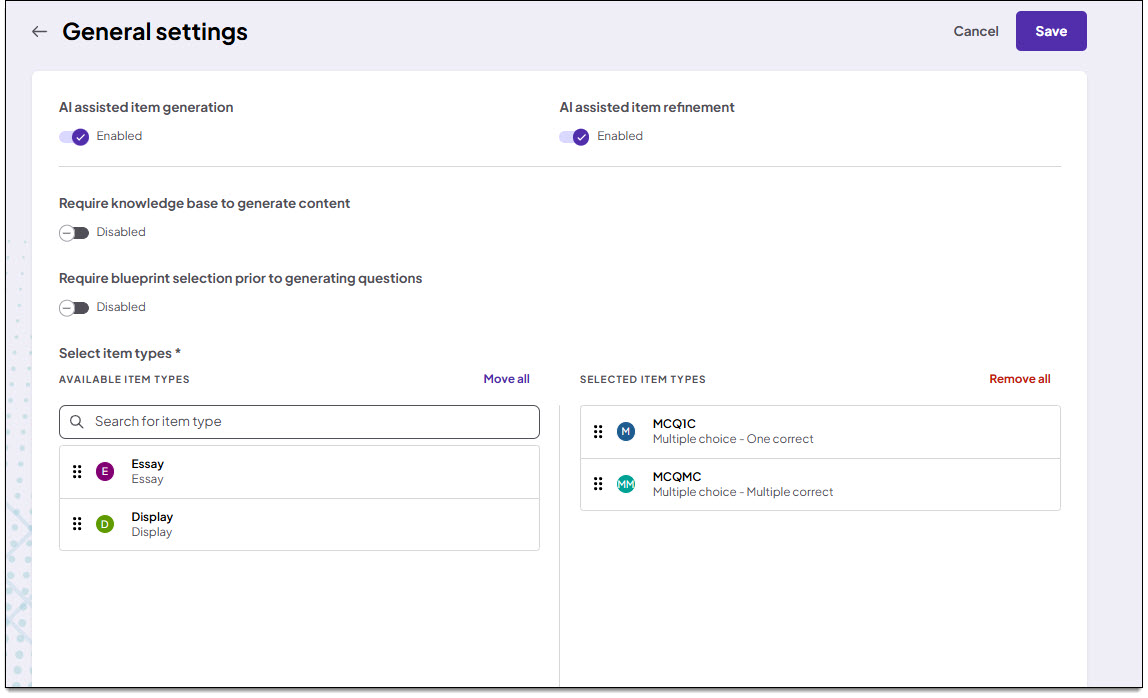
Enable Item Assist
- In the top section, enable
 or disable
 the following options:
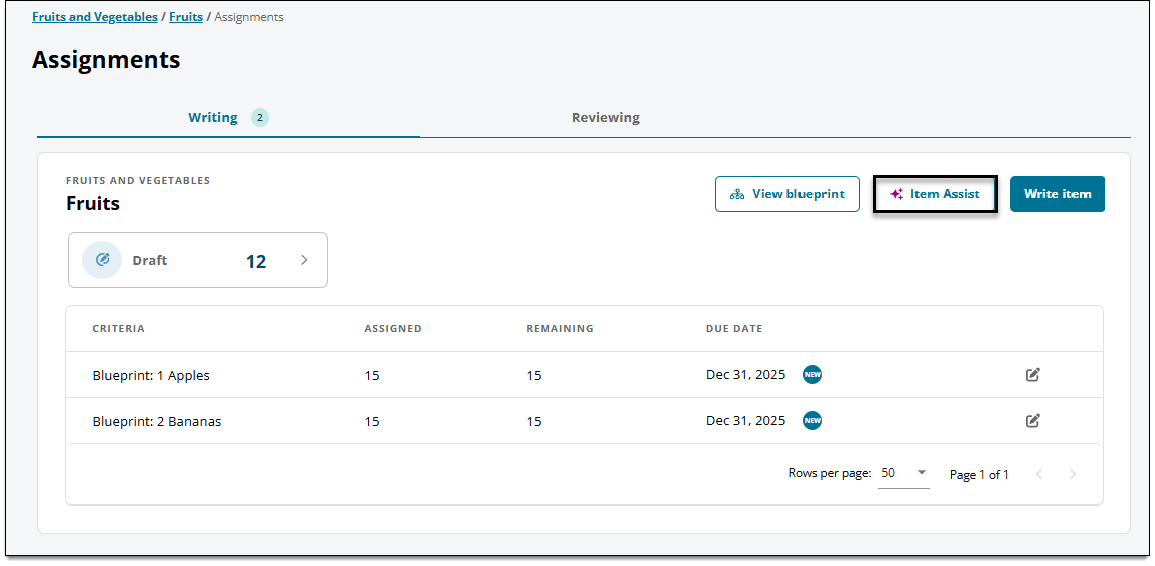
- AI-assisted item generation: When enabled , authors assigned to the project can access Item Assist to generate items by clicking the Item Assist button on their dashboard.
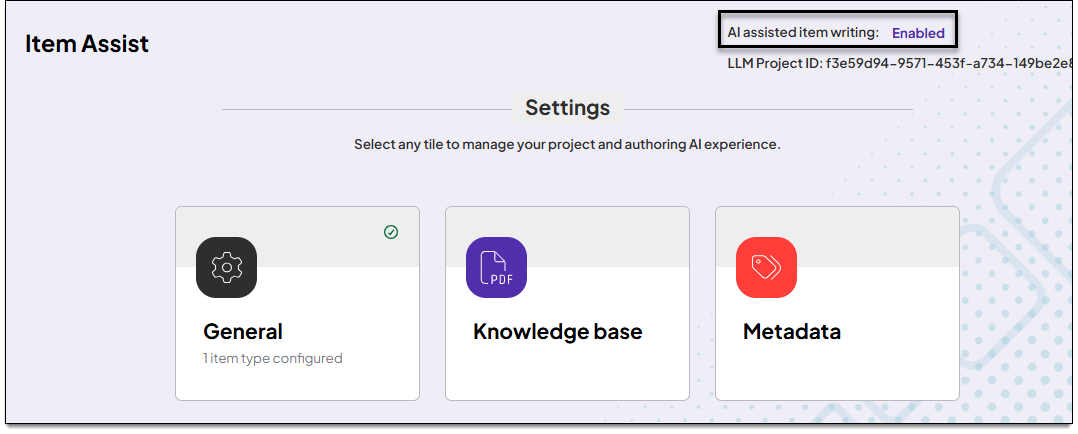
You will also see the message "AI assisted item writing: Enabled" on the Item Assist settings home page.
When disabled, authors cannot access Item Assist; the Item Assist button is not available on the dashboard. However, authors can still access items that were previously generated using Item Assist. They may also refine items if refinement is enabled (see point below).
- AI-assisted item refinement: When enabled , authors assigned to the project can access the Refine items panel when authoring items.
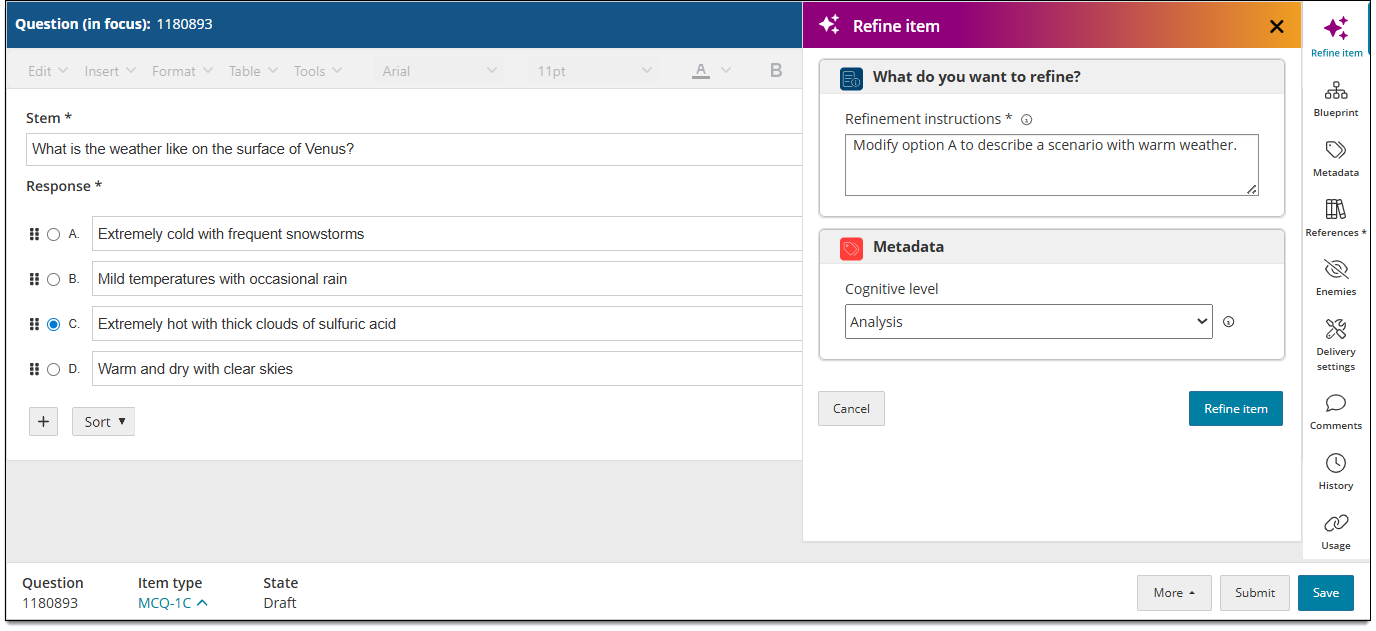
When disabled, authors cannot access the refinement panel. However, authors may still be able to generate items using Item Assist as described in the point above.
- AI-assisted item generation: When enabled
- Click Save.
Require knowledge base to generate content
With the knowledge base turned on, Item Assist must use the uploaded resources in the knowledge base as its only references and sources of truth instead of the AI model's original training data. If the knowledge base is turned off, Item Assist will use the AI model's original training data to generate item content and references.
- In the Require knowledge base to generate content section, enable or disable the option.
- Enabled: Resources in the knowledge base (retrieval augmented generation) will be used to generate items.
- Disabled: Item Assist will use the AI model's original training data to generate item content.
- Click Save.
Require blueprint selection
- Under Require blueprint selection prior to generating questions, enable or disable the option.
- Enabled: Authors are required to select an area of the project blueprint before generating items.
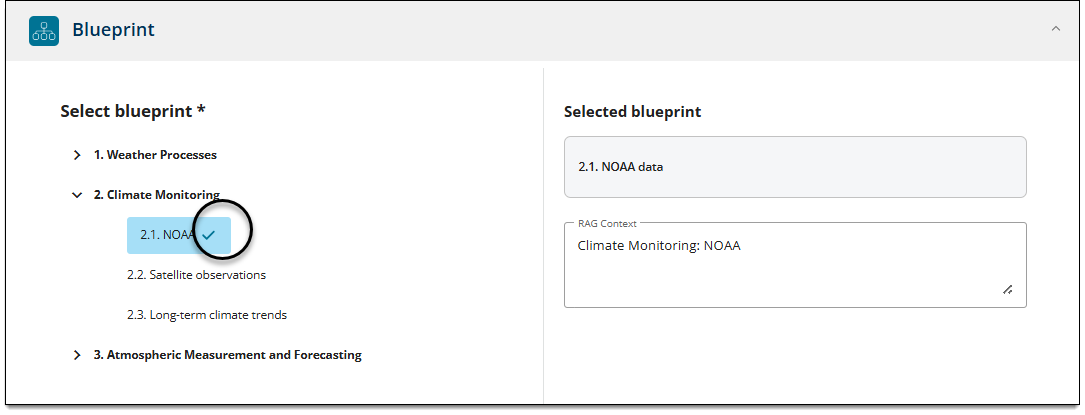
- Disabled: Authors are not required to select a blueprint area, but they can still select one if needed.
- Enabled: Authors are required to select an area of the project blueprint before generating items.
Select blueprint levels to search
|
|
 This option is shown only if the
- Under Select blueprint levels Item Assist will use to search your knowledge base documents, select how far up or down in the blueprint hierarchy Item Assist should refer to when searching the knowledge base for content. Or, choose All levels to allow Item Assist to refer to all blueprint levels when searching the knowledge base. (Options will vary based on how many levels are present in your blueprint.)
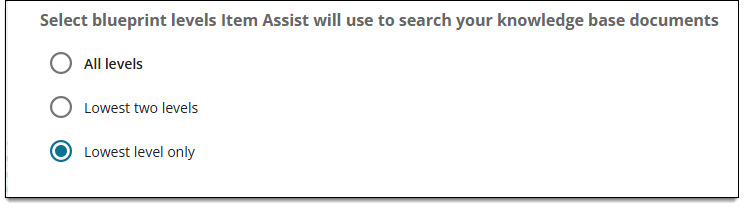
- For example, suppose your blueprint has three levels (Main topic > Subtopic > Topic), and an author chooses a blueprint area at the Topic level (the lowest/most granular level). If you select Lowest level only, Item Assist will ignore the Subtopic and Main topic directly above the author's chosen Topic. However, if you select All levels, Item Assist will refer to the Subtopic and Main topic above the author's chosen Topic.
- Click Save.
|
|
Example
Given the sample "Bird Identification" blueprint shown below, suppose the author chooses 6.1.1 "Small, Medium, and Large Birds" when deciding which part of the blueprint Item Assist should use when generating items:
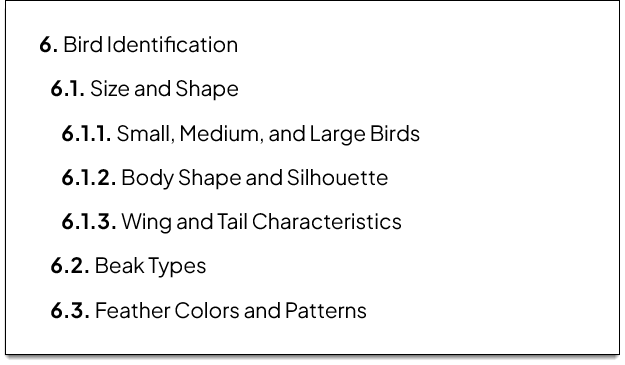
- If your selection on the General settings page is Lowest level only, only 6.1.1 "Small, Medium, and Large Birds" will be sent to Item Assist as the search context (unless the author modifies the RAG context field).
- If Lowest two levels is selected, "Size and Shape: Small, Medium, and Large Birds" will be sent as the RAG context, but 6 "Bird Identification" will be ignored.
Select item type
|
|
 Media files cannot be generated with Item Assist. If the item template has a media component in the stem, the LLM won't generate any media. Authors must add media manually after the items are generated.
- In the Select item type area, click and drag the desired item types from the Available Item Types list to the Selected Item Types list.
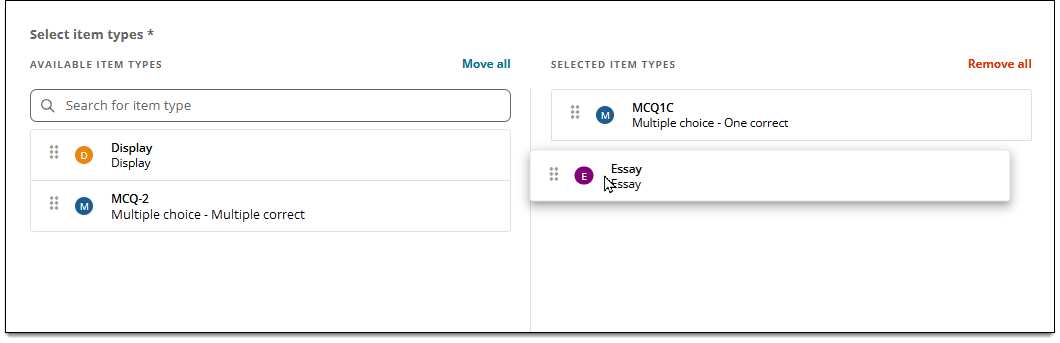
- Click Move all to add all item types to the Selected Item Types list.
- Search for a specific item type in the Available Item Types list.
- Click Save.
- The item types you selected are now available in a drop-down list for authors when they are selecting which item type to generate.